
How to use Ads Connector
Step 1: Connect your ad account
- Go to Ads Connector in the main navigation menu.
- Click Connect and follow the steps to log in to the advertising platform selected
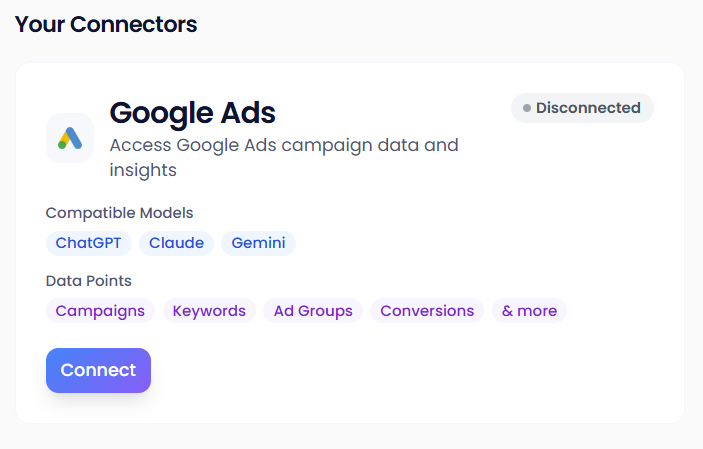
Once done, your email address will show as connected. Now you can start using your ad accounts in chat!
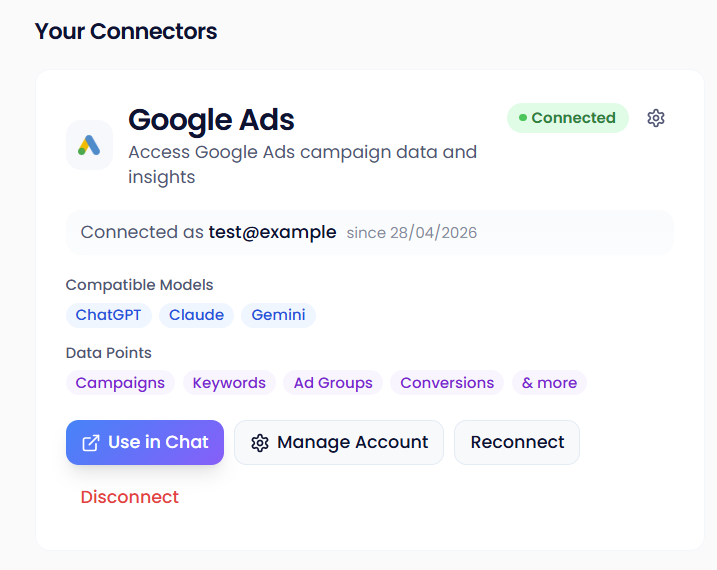
Can I connect more than one email address? Currently you can connect one login (set of credentials) at a time. To switch, click Reconnect and sign in with the one you want to use.
Step 2: Bring your account into Chat
There are two ways to do this:
- From the Ads Connector page, click Use in Chat under your connected account. If you have access to multiple accounts you’ll be able to select the one you want.
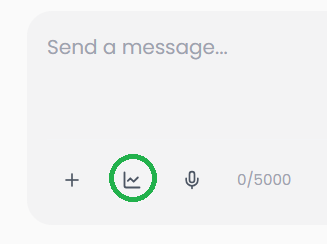
- Or open Chat directly, click the chart icon at the bottom of the chat box, select your account, and click Apply to Chat.
Can I compare performance across ad accounts? Currently you can select one ad account at a time. Soon, when our Microsoft Advertising and other integrations are launched, you’ll be able to select one account per platform so that you can compare the performance of your Google Ads and Microsoft Advertising campaigns, for example.
Step 3: Start chatting with your data
You're set. Type your own prompt or pick one from the prompt library to get going. For best results, use the Niki persona (this will be selected by default) and use a model suited to the depth of analysis you need. We recommend models such as the latest generations of Opus and ChatGPT.
Use Chat for performance summaries, audits, and optimisation recommendations - all grounded in your real account data.
Why do we suggest the Niki Persona?
This is our custom paid search persona modelled on our team member, Niki Grant, a recognised PPC expert and industry voice. It will give you deeper strategic analysis tuned to how PPC professionals actually think.