
Selecting an AI Model in Chat
At the top of the Chat page, click the model dropdown to browse all available AI models. If you already have a model in mind, use the search bar to find it quickly.
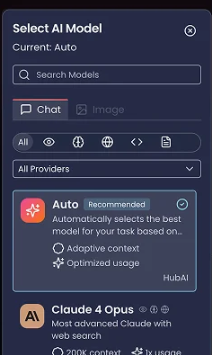
Not sure which to choose? Leave it on Auto and Omni AI will automatically select the most suitable model based on your prompt.
Each model in the list shows three things:
- Description: a brief overview of what the model is good at
- Credit usage: shown as a multiplier (1x, 2x, 3x, etc.). A 2x model uses twice the credits of a standard prompt, so it's worth keeping an eye on.
- Context size: this is how much information the AI can hold in memory at once. A larger context (e.g. 1M) means the AI can handle longer documents, bigger files, and extended conversations without losing track of earlier details. For most everyday tasks, any model will do, but if you're working with lengthy content, look for a higher context size.
Once you've chosen a model, simply click it to apply it to your chat.